

Bromcom Student Support
This is the student support page for Bromcom. As well as the help and advice here, you will also receive support from staff at school.
Bromcom is the school's MIS (management information system) and is the central piece of software in the day to day running of the school. The ‘Student Portal’ is the name of the student view of our published data on both desktop and the app.
Using the Student Portal, you will have easy access to your data anytime and anywhere. A dedicated smartphone app provides the added convenience of allowing access on iPhones and Android.
Some of the things you will be able to access from the start:
- Your timetable
- Your homework
- Your behaviour record
- Your exam timetable and results
We have not enabled all the features in Bromcom yet, so there may be features mentioned in help guides that you find online that are not visible in your Bromcom. We will publish help guides for all new features and visible data when we enable them.
Essentials
To get set up on Student Portal, every student must follow the first set of instructions below called 'How do I Sign in for the First Time?'
Q. How do I Sign in for the First Time?
A. Your Bromcom account is linked to your SMRT email. We use 'Single Sign On' for Bromcom, and so at the start of your time at SMRT, all you need to do is log into the App or the Portal website with your SMRT email and password. Follow the steps below to see how.
Instructions for the App
- Download the Student Portal app from the links below or search in your app store for the Bromcom Student app.
Download the Student Portal App from the Apple App Store
Download the Student Portal App from the Google Play Store
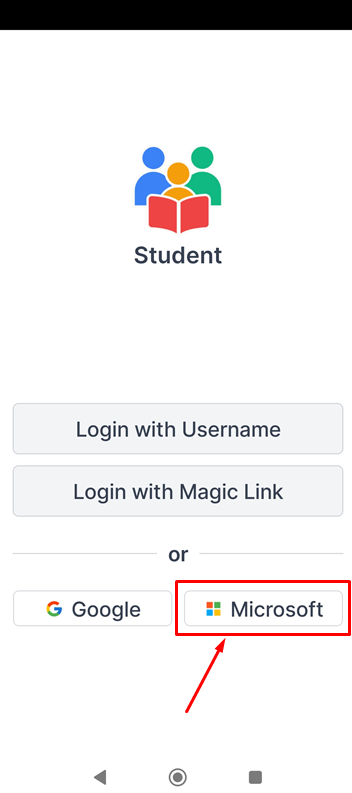
2. On the home page of the app, select Microsoft and enter your School email and password.
Instructions for the Portal Website
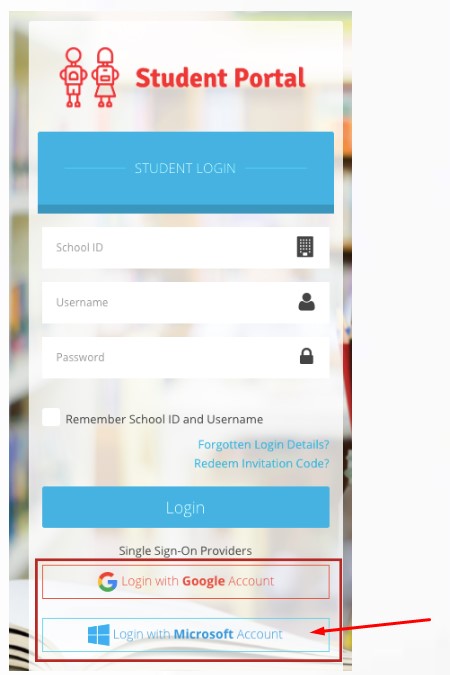
1. Go to https://www.bromcomvle.com/
2. Select Login with Microsoft Account as seen below;
Q. I Have Forgotten my Pin for the App. What do I do?
A. Click the 'Forgotten my pin' link underneath where you enter your pin. Then follow the instructions Bromcom gives you to reset the app on your phone. This will be the same steps for setting up the app the first time, so you will need to be able to receive school emails on your device. See the instructions above for more information.
Q. So is there a Student Portal Website as well the app? Is it Different?
A. Yes, you can log into the Student Portal web here:
Sign in using the 'Login with Microsoft Account' button, then your school email and IT password.
It looks a little different to the apps because it is made for desktop viewing, but essentially it shows the same information as the app.
Please note that detentions are only visible on the web view currently, not the app.
Q. How do I use the Student Portal?
A. The Student Portal is easy to use and consists of 2 parts. This will refer to the web version but the process is the same on the app.
1. The main dashboard of coloured squares is where you can see information automatically at a glance.
The 'More' button in each coloured square takes you to a page that shows you a bit more information.
2. There is a menu along the left-hand side that allows you to see a bit more information about each area (the same information that the 'more button' takes you to).
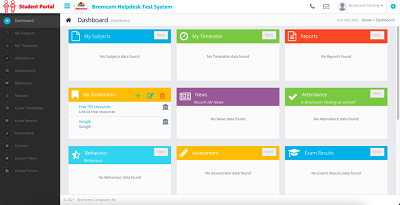
Further information on using the Student Portal is available in the video linked below. Note, we have not enabled all the features shown in the video but you will learn the basics of how to navigate around the Portal by watching it.
Video on how to use the Student Portal.
See the sections below for specific help.
Homework
You may find the extra space and presentation of homework in the web view preferable to the app.
You don't submit work using Bromcom. Complete and hand in the work as you normally do, whether that's in class or on another platform (e.g. Teams).
If you need to remove a piece of homework from your list ahead of its due date - because you've finished it - then you can 'hide' the homework. Your hidden homework is available to view using the 'Show hidden homework' selector (web view).
Past homework will appear when you select 'Show Past Homework' (web view).
Exam Timetables
When finalised, the GCSE and A Level exam timetables, as well as timetables for some mocks, will be available on Bromcom.
Click on the menu link: Exam Timetables to view the latest timetable information.
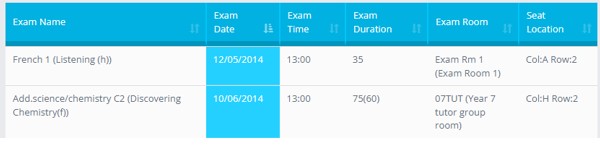
All the columns can be sorted in alphabetical or numerical order by clicking the arrows in the column heading.